Open Source · macOS

See who's using
your webcam.
Anytime.

Webcam Tracker logs which apps access your camera, when they start and stop, and how long each session lasts. Metadata only — it never touches the video stream.

Local only No cloud Never reads camera feed macOS 13+

Why people use Webcam Tracker

Privacy peace of mind

See if something turned on the camera when you didn't expect it. Review a timestamped history of every camera session — which app, when it started, and how long it ran.

Remote work & meetings

Audit Zoom, Meet, Teams, and FaceTime usage. See how long each app had the camera active — not what was said or shown on screen. Useful for time-tracking and awareness.

Parental / shared Mac

Understand which apps accessed the camera on a family or shared machine. A local audit trail that stays on the device — no account required, no data leaves the Mac.

Security & compliance notes

Export CSV session logs for personal records or lightweight compliance documentation. A simple, factual record of camera access — no enterprise claim, just your data.

Developer / power user debugging

The same signal macOS already logs — surfaced in a clean dashboard instead of a Terminal log stream. Useful when debugging camera access in your own apps.

How tracking works (and what we never do)

We don't open your camera

The app never calls AVCaptureSession or reads frames. It only listens to system logs that macOS already writes when apps start or stop camera capture.

macOS log stream in real time

A background process runs Apple's log stream with a predicate on camera-related subsystems. The app auto-detects which subsystem your Mac uses — Sonoma+ often uses com.apple.controlcenter, older builds use com.apple.cameracapture, with fallbacks for SkyLight and cmio.

# Simplified predicate — actual implementation auto-selects subsystem log stream --style syslog --predicate '(subsystem == "com.apple.cameracapture") || (subsystem == "com.apple.controlcenter")'

Parse start / stop events

Each log line is parsed for the event type and the app that triggered it:

  • Event type: camera started vs. stopped (e.g. startRunning] / stopRunning], or equivalent per subsystem)
  • App name: extracted from the process token (e.g. FaceTime[1234]: → FaceTime)
  • Noise filtering: headers, backtraces, and <private> redacted lines are discarded

Sessions stored in SQLite

Parsed events become session rows in a local SQLite database:

  • Start event → new row: app name, start time, status running
  • Stop event → close session, compute duration
  • Multiple apps can be active at once (concurrent sessions)
  • Pause / Resume ends open sessions and stops listening until resumed
  • Crash recovery: orphaned "running" sessions are closed on next launch

Why Full Disk Access?

Reading com.apple.cameracapture (and related) log data requires Full Disk Access on macOS. It's a one-time setup in System Settings → Privacy & Security. We only read logs needed for camera events — nothing else.

What we collect vs. don't

✓  We collect ✗  We don't collect
App name, start/end time, duration Video, audio, screenshots
Session status (running / completed) Network upload, analytics
Local SQLite on your Mac Account, email, cloud sync

Everything in one calm dashboard

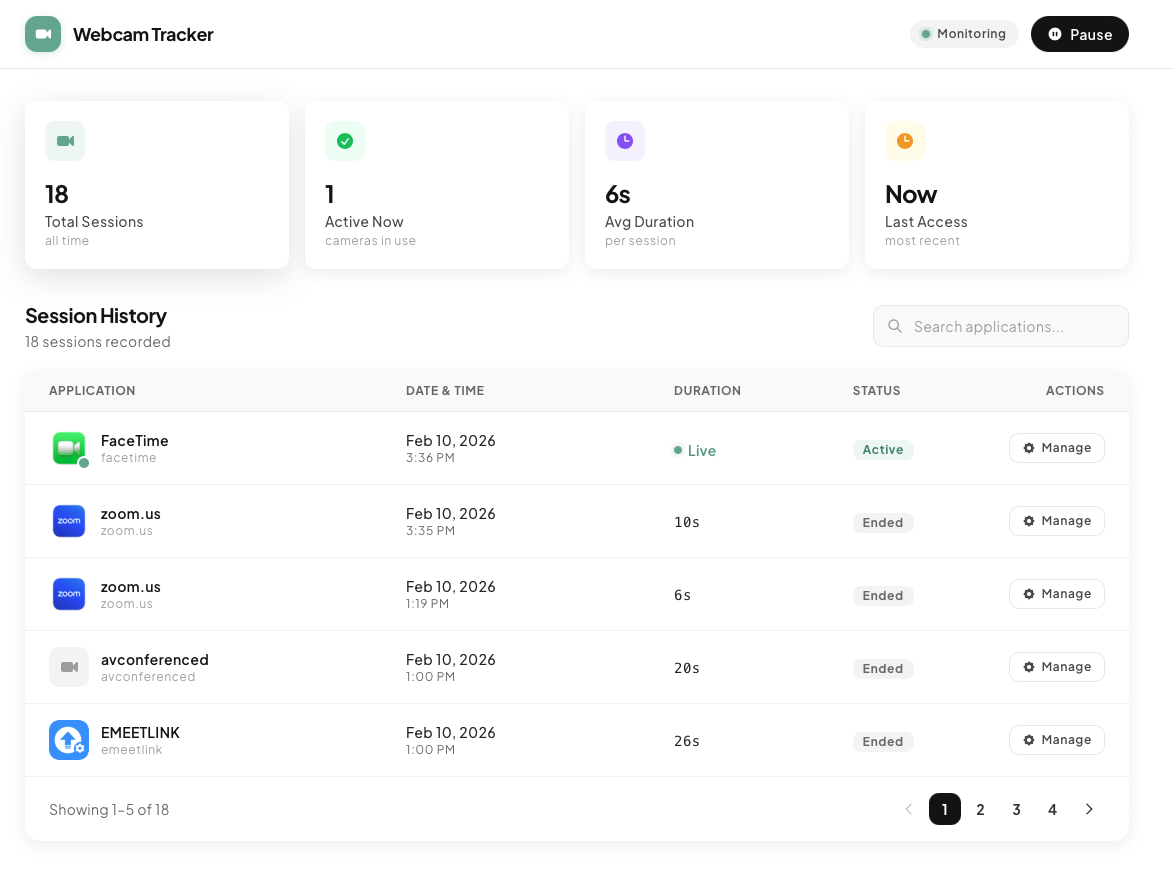
Webcam Tracker dashboard showing session history with stats cards for Total Sessions, Active Now, Avg Duration, and Last Access. A paginated table lists camera sessions by application, date, duration, and status.
Stats at a glance — total sessions, active cameras, average duration, last access
Paginated session history — browse every camera event with app icons, timestamps, and duration
CSV export — save session data via a standard file dialog, no network involved
Pause without quitting — stop listening temporarily, then resume when ready

Your data never leaves your Mac

All session data is stored in a local SQLite database on your machine. There is no cloud service, no account creation, and no analytics SDK. Export is user-initiated through a standard macOS save dialog — the app never writes files or sends data without your explicit action.

On first launch, Webcam Tracker shows a consent screen explaining what it does and what permissions it needs. The entire project is MIT open source — you can read every line of code on GitHub.

100% on-device
User-initiated export
Consent on first launch
MIT open source

Install in under a minute

1
Download the DMG Grab the latest release from GitHub Releases.
2
Drag to Applications Open the DMG and drag Webcam Tracker into your Applications folder.
3
Gatekeeper note If macOS blocks the app, right-click → Open, or run xattr -cr /Applications/Webcam\ Tracker.app
4
Grant Full Disk Access System Settings → Privacy & Security → Full Disk Access → add Webcam Tracker.
5
Consent & go Accept the consent prompt. Camera session tracking starts immediately.